Creating custom templates
✨ Branch: custom-template
Introduction
Stores are made up of several different pages, each with a specific content and layout. When creating a store from scratch in VTEX IO, some default pages with preset URLs are already available. Below, we have a list of some of these default pages:
store.home �(Home page)store.product (Product page)store.search (Search Results page)store.account (Client Account page)store.login (Login page)store.orderplaced (Order Placed page)
But it's also possible for you to create a custom landing page. In this case, you should create a new URL and specific content to display to users that access this path.
Creating a Landing Page
Just a few steps a needed to create a custom landing page:
- Create a new template in your store's theme
- Create a new path to access this template
Template
A template defines the page layout. However, if you want to create a custom page, you will also need to create a new template in your theme.
Let's imagine that your wanted to created a simple page containing information about your store. Inside the blocks folder, you can create a file that would contain the following code, declaring a new template for a custom page,
{
 "store.custom#{templatename}": {
     "blocks": [
     ]
  }
}
where {templateName} must be replaced with the template's identifying name.
Then, you should fill in the code with the components needed to create the layout. Below we can an example of such implementation:
{
 "store.custom#{templatename}": {
   "blocks": [
     "flex-layout.row#about-us"
   ]
 },
 "flex-layout.row#about-us": {
   "children": [
     "image#about-us",
     "flex-layout.col#text-about-us"
   ]
 },
 "flex-layout.col#text-about-us": {
   "children": [
     "rich-text#about-title",
     "rich-text#about-content"
   ],
       "props": {
     "preventVerticalStretch": true
   }
 },
"rich-text#about-title": {
   "props": {
     "text":
     "# About FlatFlat"
   }
 },
 "rich-text#about-content": {
   "props": {
     "text":
     " FlatFlat is an electronics store with a long standing tradition for creating modern and vintage items. Out objective is to create home appliances that make your house stand out, no matter your style. Merely 2 months old, we're already the store with the most beautiful products among all VTEX stores. We are currently building our site with the aim of giving our customers an unforgetable experience with our brand!"
   }
 },
 "image#about-us": {
   "props": {
     "src": "https://appliancetheme.vteximg.com.br/arquivos/cozinha-about-us.png",
     "maxHeight": "600px"
   }
 }
}
Path
Now that a new template with the page layout has been defined in the store theme's code, the next step is to establish the page's page that would lead to this layout.
We must create a routes.json file in your theme's store folder. Afterwards, insert the code below,
{
  "store.custom#about-us": {
    "path": "/{URL}"
  }
}
where {URL} is the name of the desired path.
Activity
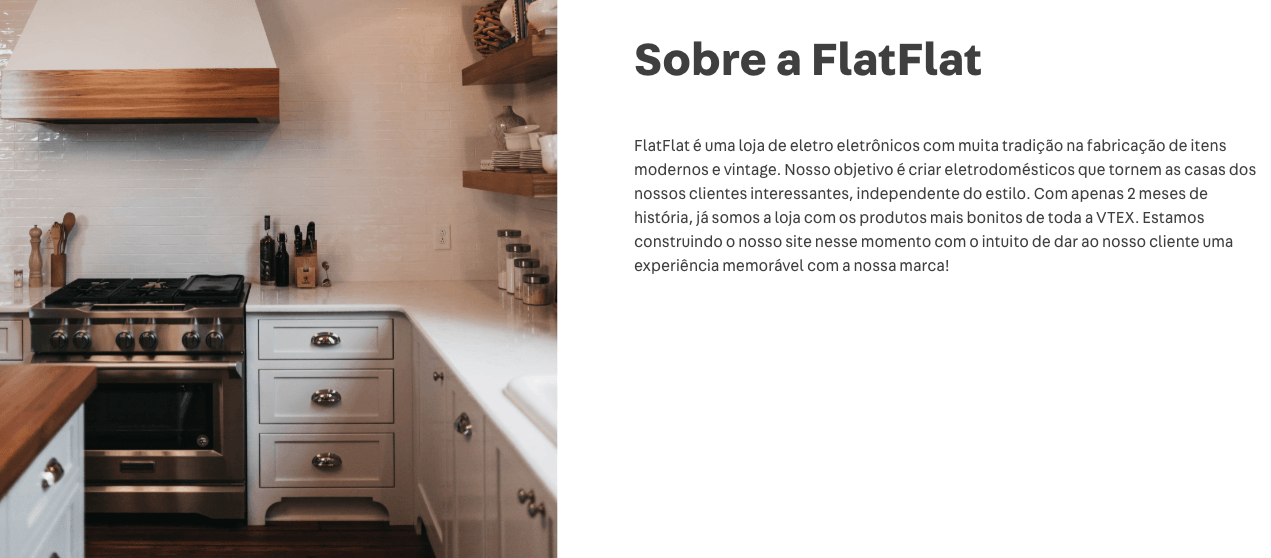
Let's create a page containing information about your store, as in the example below:
- In the
blocks folder, create a file called about-us.jsonc;
- Declare a
store.custom#about-us template in this file;
- Include a "flex-layout.row#about-us" block in this template;
- After declaring
flex-layout.row, use the code in example given above to complete the page layout;
- In the
store folder, create a file called routes.json;
- In this file, declare an
/about-us path;
- Once the code is linked, access
{workspace}--appliancetheme.myvtex.com/about-us to see your new landing page.
If you're still unsure as to how to send your answers, click here.

Creating custom templates
✨ Branch: custom-template
Introduction
Stores are made up of several different pages, each with a specific content and layout. When creating a store from scratch in VTEX IO, some default pages with preset URLs are already available. Below, we have a list of some of these default pages:
store.home�(Home page)store.product(Product page)store.search(Search Results page)store.account(Client Account page)store.login(Login page)store.orderplaced(Order Placed page)But it's also possible for you to create a custom landing page. In this case, you should create a new URL and specific content to display to users that access this path.
Creating a Landing Page
Just a few steps a needed to create a custom landing page:
Template
A template defines the page layout. However, if you want to create a custom page, you will also need to create a new template in your theme.
Let's imagine that your wanted to created a simple page containing information about your store. Inside the
blocksfolder, you can create a file that would contain the following code, declaring a new template for a custom page,{ "store.custom#{templatename}": { "blocks": [ ] } }where
{templateName}must be replaced with the template's identifying name.Then, you should fill in the code with the components needed to create the layout. Below we can an example of such implementation:
{ "store.custom#{templatename}": { "blocks": [ "flex-layout.row#about-us" ] }, "flex-layout.row#about-us": { "children": [ "image#about-us", "flex-layout.col#text-about-us" ] }, "flex-layout.col#text-about-us": { "children": [ "rich-text#about-title", "rich-text#about-content" ], "props": { "preventVerticalStretch": true } }, "rich-text#about-title": { "props": { "text": "# About FlatFlat" } }, "rich-text#about-content": { "props": { "text": " FlatFlat is an electronics store with a long standing tradition for creating modern and vintage items. Out objective is to create home appliances that make your house stand out, no matter your style. Merely 2 months old, we're already the store with the most beautiful products among all VTEX stores. We are currently building our site with the aim of giving our customers an unforgetable experience with our brand!" } }, "image#about-us": { "props": { "src": "https://appliancetheme.vteximg.com.br/arquivos/cozinha-about-us.png", "maxHeight": "600px" } } }Path
Now that a new template with the page layout has been defined in the store theme's code, the next step is to establish the page's page that would lead to this layout.
We must create a
routes.jsonfile in your theme'sstorefolder. Afterwards, insert the code below,{ "store.custom#about-us": { "path": "/{URL}" } }where
{URL}is the name of the desired path.Activity
Let's create a page containing information about your store, as in the example below:
blocksfolder, create a file calledabout-us.jsonc;store.custom#about-ustemplate in this file;flex-layout.row, use the code in example given above to complete the page layout;storefolder, create a file calledroutes.json;/about-uspath;{workspace}--appliancetheme.myvtex.com/about-usto see your new landing page.If you're still unsure as to how to send your answers, click here.